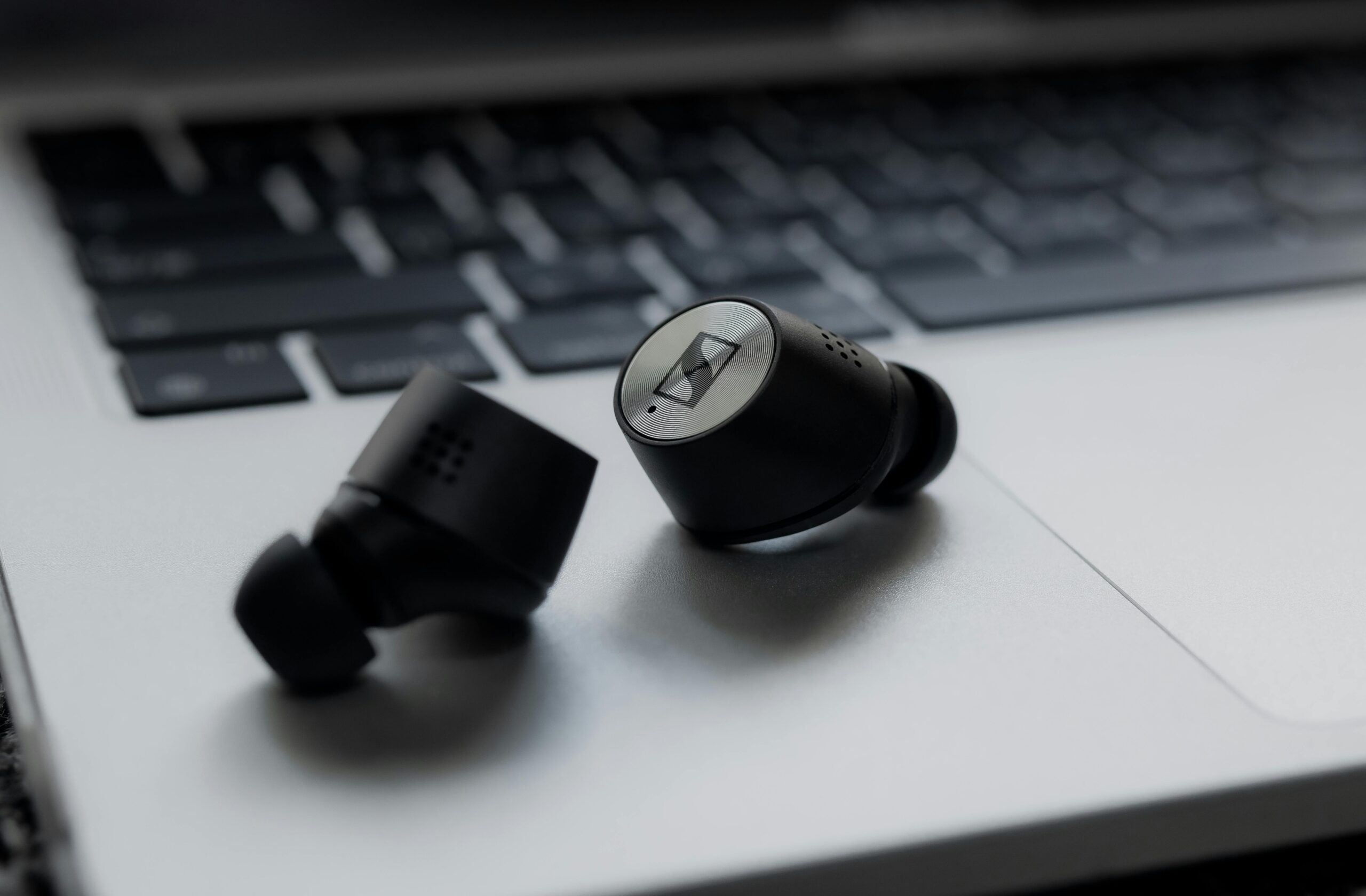

Bluetooth headphones or speakers show as connected, but there’s no sound at all? This is a very common Windows issue and it usually has nothing to do with broken hardware. In most cases, Windows is simply sending audio to the wrong device or using the wrong Bluetooth profile.
Follow these fixes in order — most users solve it before reaching the end.
1. Check the Active Playback Device (This Fixes Most Cases)
Windows often keeps audio output set to speakers even when Bluetooth is connected.
- Right-click the speaker icon in the taskbar
- Select Sound settings
- Under Output, choose your Bluetooth headphones or speaker
If you see multiple entries for the same device, pick the one labeled Stereo, not Hands-Free.
2. Disable Hands-Free Telephony Mode
Bluetooth devices often connect in hands-free mode, which is meant for calls — not music.
- Open Control Panel
- Go to Devices and Printers
- Right-click your Bluetooth device → Properties
- Open the Services tab
- Uncheck Hands-Free Telephony
- Click Apply and reconnect the device
This single step fixes “connected but no sound” for many users.
3. Set the Bluetooth Device as Default Audio Device
Sometimes Windows recognizes the device but doesn’t prioritize it.
- Open Sound settings
- Scroll to Advanced → More sound settings
- Under Playback, right-click your Bluetooth device
- Select Set as Default Device
- Click OK
Restart audio playback after doing this.
4. Restart Bluetooth and Audio Services
Windows audio services can get stuck after sleep or updates.
- Press Win + R, type
services.msc - Restart:
- Bluetooth Support Service
- Windows Audio
- Windows Audio Endpoint Builder
Reconnect your Bluetooth device afterward.
5. Remove and Re-Pair the Bluetooth Device
Corrupted Bluetooth pairings are common.
- Open Settings → Bluetooth & devices
- Remove the Bluetooth device
- Restart your PC
- Pair the device again from scratch
After pairing, immediately check the sound output device.
6. Update or Roll Back Bluetooth Drivers
Driver issues often appear after Windows updates.
- Open Device Manager
- Expand Bluetooth
- Right-click your Bluetooth adapter
- Try Update driver
- If the problem started recently, try Roll Back Driver instead
Restart after making changes.
7. Test with Another App or Browser
Some apps lock audio to a specific device.
- Close all apps using audio
- Test sound in another browser or media player
- Check per-app audio settings in Volume Mixer
If this issue happens only on certain networks, it may be related to router or adapter problems. You should also check our guide on Bluetooth Not Working on Windows Laptop? Try These Proven Fixes
When It’s Not Windows
If the device works fine on your phone but not on Windows, the issue is almost always software-related, not hardware failure.
Final Tip
Bluetooth audio problems on Windows usually come down to wrong output device or wrong profile. Always check Stereo vs Hands-Free first before doing anything else.