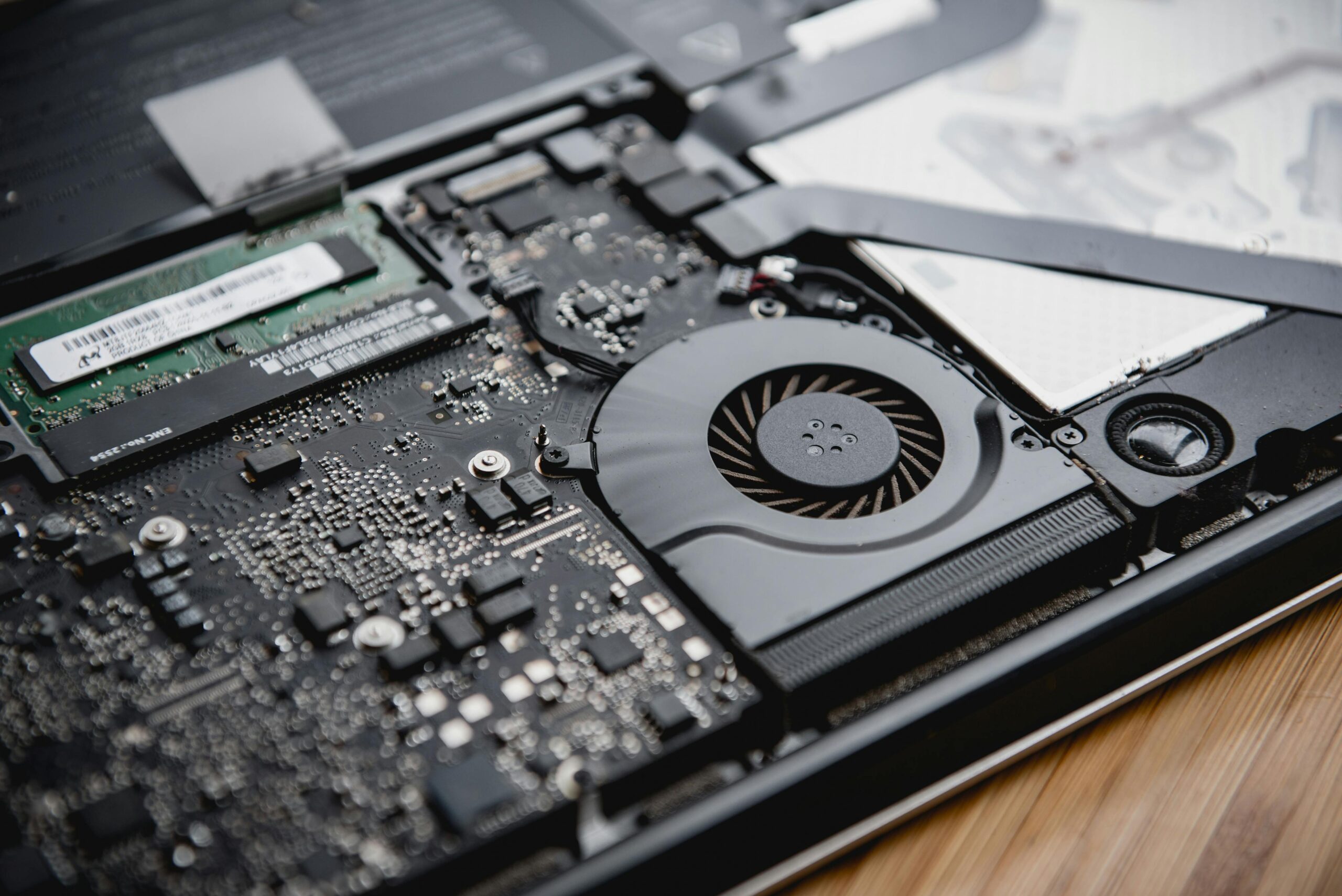

If your laptop fan is constantly running—even when you’re not doing anything demanding—it’s usually a sign that something in the background is forcing your system to work harder than it should. While loud fans are often associated with gaming or heavy workloads, persistent fan noise during idle use points to misconfiguration, software issues, or thermal problems.
Below are the most common causes and fixes.
1. Background Processes Are Using Too Much CPU
Even when your laptop looks idle, background apps can quietly consume resources.
Open Task Manager and sort processes by CPU usage. If something consistently uses CPU while you’re not working, that alone can keep the fan running.
👉 This often overlaps with overheating issues described in Windows Laptop Overheating When Idle — if your fan noise is paired with high temperatures, check that article for deeper thermal fixes.
2. Windows Power Mode Is Set to High Performance
High Performance mode prioritizes speed over temperature and noise.
Switch to Balanced or Best Power Efficiency in Windows power settings. This reduces unnecessary CPU boosts that trigger fan activity.
3. Dust or Blocked Airflow
Dust buildup inside the laptop forces fans to work harder to maintain safe temperatures.
If your laptop is more than a year old and has never been cleaned, internal dust is a very likely cause—especially if the fan noise gradually increased over time.
4. Outdated BIOS or Chipset Drivers
Fan behavior is partially controlled at the firmware level. Old BIOS versions can cause fans to spin aggressively even when temperatures are normal.
Check your manufacturer’s website for:
- BIOS updates
- Chipset and thermal driver updates
Only update BIOS if instructions are clear and model-specific.
5. Malware or Hidden Background Tasks
Some unwanted software runs silently and continuously.
Run a full malware scan. Persistent CPU usage from unknown processes can also cause network issues, similar to problems covered in Wi-Fi Connected but Websites Won’t Load
6. Thermal Paste Degradation (Older Laptops)
Over time, thermal paste between the CPU and heatsink dries out, reducing heat transfer.
If your laptop is 3–5 years old and runs hot at idle despite clean software, degraded thermal paste may be the real cause.
A fan that never stops running will significantly reduce battery life.
Laptop Battery Draining Fast Even When Not in Use
When Fan Noise Is Actually Normal
Modern laptops aggressively manage temperatures. Short fan bursts during updates, browser activity, or background syncing are normal. Constant fan noise during true idle is not.
Quick Fix Checklist
- Check Task Manager for high CPU usage
- Switch power mode to Balanced
- Clean vents and ensure airflow
- Update BIOS and chipset drivers
- Scan for malware