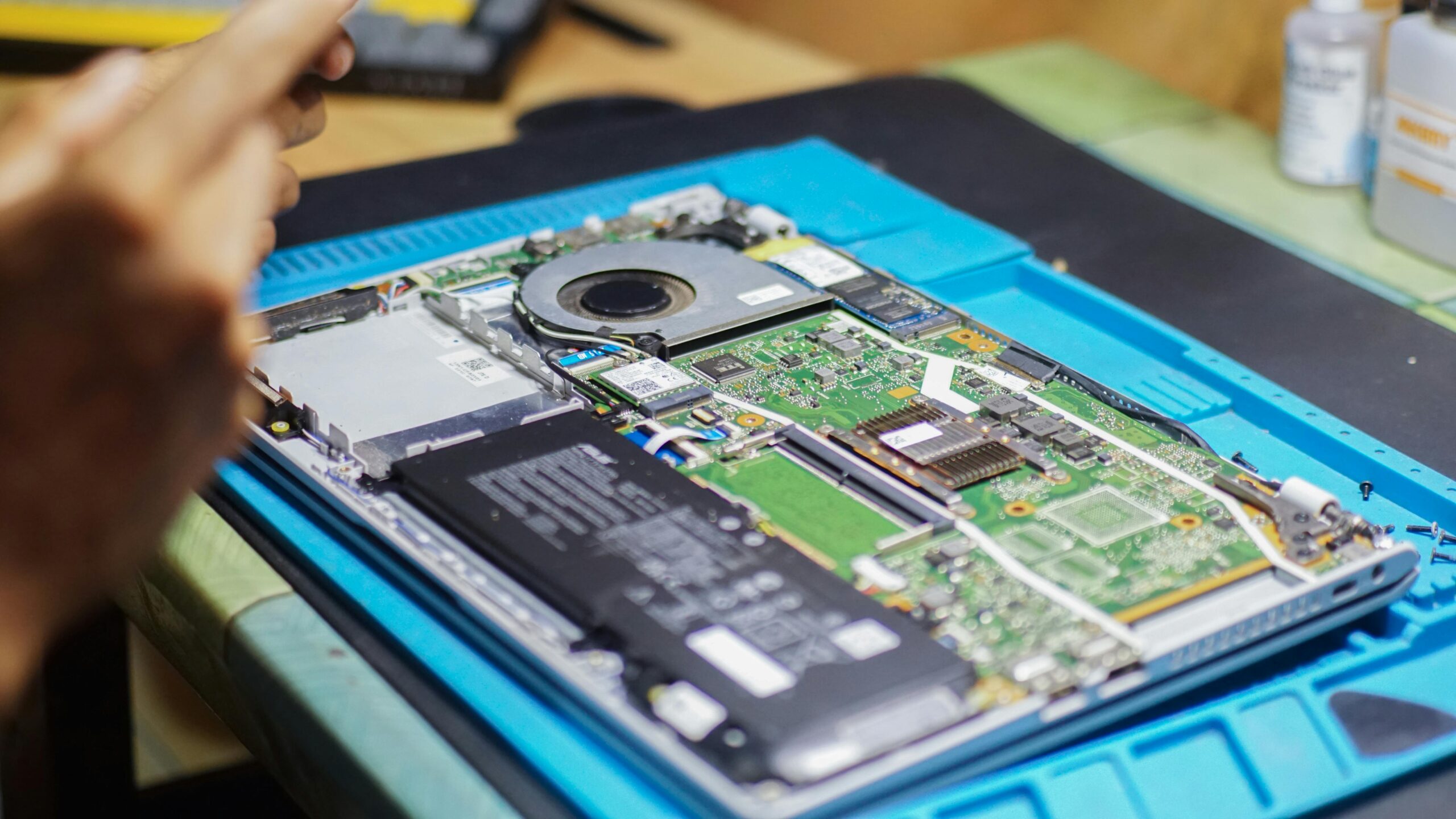

A swollen laptop battery is a serious issue that should never be ignored. If your laptop case looks bulged, the trackpad feels raised, or the bottom panel no longer sits flat, the battery may be expanding internally.
This isn’t rare — and it’s not something you should “wait and see” with. Here’s how to recognize battery swelling, why it happens, and what to do next.
Common Signs of a Swollen Laptop Battery
Look for one or more of these warning signs:
- Laptop no longer sits flat on a desk
- Touchpad is hard to click or pushed upward
- Bottom cover bulging or separating
- Screen frame lifting near the hinge
- Battery life suddenly becoming unstable
If any of these appear, stop using the laptop on your lap immediately.
Why Laptop Batteries Swell
1. Battery Aging (Most Common Cause)
Lithium-ion batteries degrade over time. As internal chemical reactions break down, gas can form inside the battery pouch, causing it to expand.
This often happens after:
- several years of use
- many charge cycles
- prolonged exposure to heat
You may already see reduced capacity in your battery health report, see How to Check Laptop Battery Health on Windows
2. Heat Exposure
Heat accelerates battery degradation.
Common heat sources:
- blocked vents
- charging on soft surfaces
- hot environments
- overheating chargers
Chronic heat can cause both swelling and charging issues, sometimes alongside problems like Laptop Charger Getting Hot.
3. Constant 100% Charging
Keeping a battery at 100% for long periods increases internal stress.
Laptops that stay plugged in all day are more likely to develop swelling unless charge limits are enabled (related to Laptop Battery Not Charging Past 80%).
4. Manufacturing Defects or Physical Damage
Less common, but possible:
- defective battery cells
- internal short circuits
- impact or pressure damage
Even a small internal defect can worsen over time.
Is It Safe to Keep Using a Swollen Battery?
No.
Risks include:
- battery rupture
- fire hazard
- damage to internal components
- cracked trackpad or screen pressure damage
While catastrophic failure is rare, continued use increases risk significantly.
What You Should Do Immediately
Step 1: Power Down
Shut down the laptop completely.
Do not:
- puncture the battery
- press on the bulge
- attempt to “flatten” it
Step 2: Unplug and Stop Charging
Disconnect the charger and avoid charging until the battery is addressed.
Step 3: Remove or Replace the Battery
- If the battery is removable: remove it carefully
- If internal: take the laptop to a repair shop
Battery replacement is usually straightforward and far cheaper than replacing the laptop.
Should You Replace the Battery or the Laptop?
Replace the battery if:
- laptop still works well
- swelling is caught early
- no frame or screen damage
Consider replacing the laptop if:
- swelling cracked internal mounts
- trackpad or keyboard is damaged
- repair cost is close to laptop value
How to Prevent Battery Swelling in the Future
Best practices:
- enable charge limits (60–80%)
- avoid heat during charging
- don’t store laptops fully charged for months
- keep chargers well ventilated
These habits extend battery life and reduce swelling risk.
Final Advice
A swollen battery is not cosmetic — it’s a safety signal.
If you see physical changes in your laptop, act early. Battery replacement is simple; ignoring swelling is what causes expensive damage.